App (beta)
No registration or login
We do not want any registration or login. Creating any kind of “list” of users goes against the philosophy of this project.
All your progress (pages read, streak, badges, collection of rabbis) is therefore saved only on your device, in the TALMUD IN ENGLISH app. Nothing is recorded on the website. We have no names, emails, passwords or tracking cookies.
If you lose your device, your progress cannot be recovered without a backup. That is what device sync is for: with a single code that you write down, you can transfer your progress to another device or restore it.
Install the mobile app
The app is free, with no ads and no account. A TALMUD IN ENGLISH icon appears on your home screen; the app opens full screen and also works offline.
iPhone and iPad
- Open talmud-english.com in Safari (since iOS 16.4 this also works in Chrome and Edge).
- Tap the Share button (a square with an upward arrow, at the bottom or next to the address).
- Scroll down and choose Add to Home Screen.
- Confirm with Add. The TALMUD IN ENGLISH icon is on your home screen.
Android
- Open talmud-english.com in Chrome.
- Open the ⋮ menu and choose Install app (or Add to Home screen).
- Confirm with Install. The app appears among your other apps.
The app is deliberately not in the App Store or on Google Play: a download from a store is recorded in your Apple or Google account, which would create exactly the kind of list we do not want.
What it looks like in the app
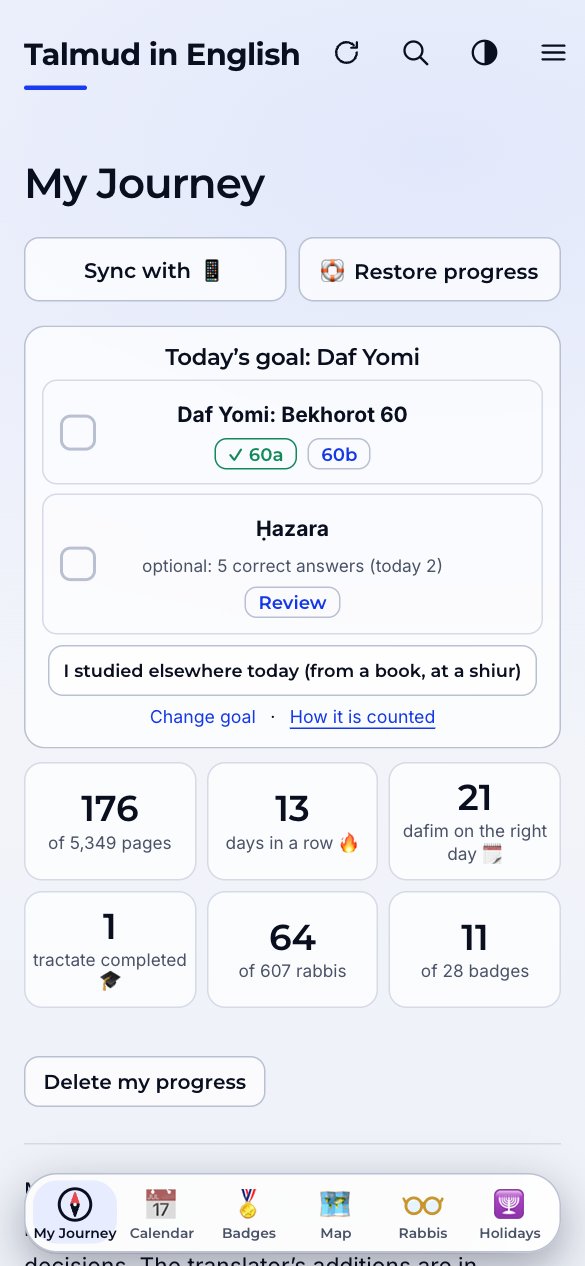
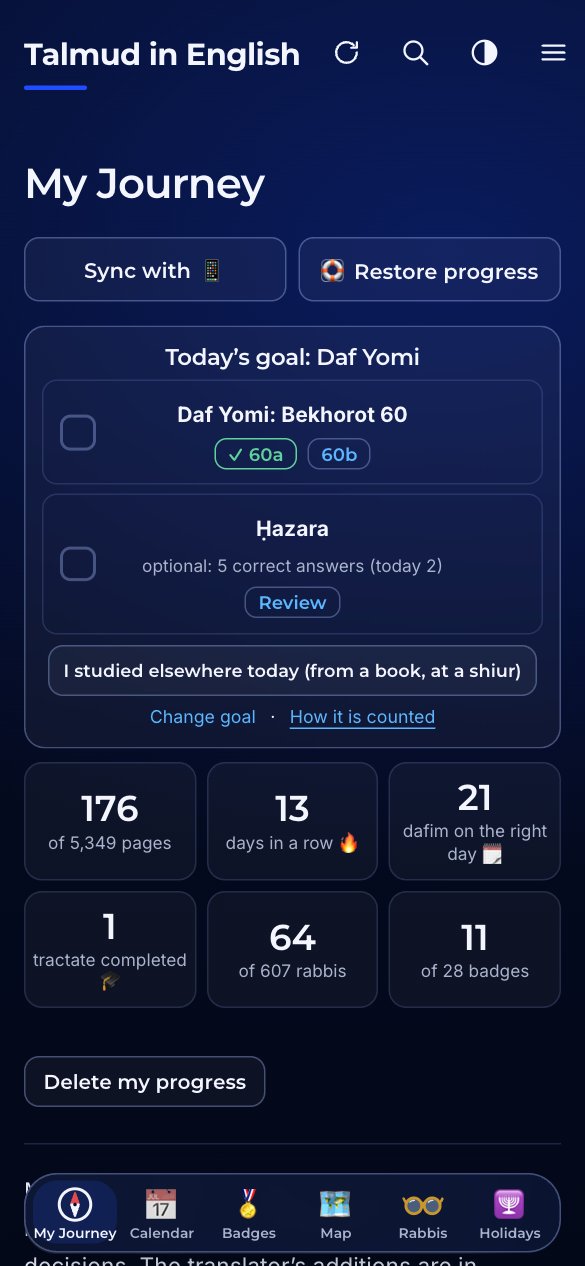
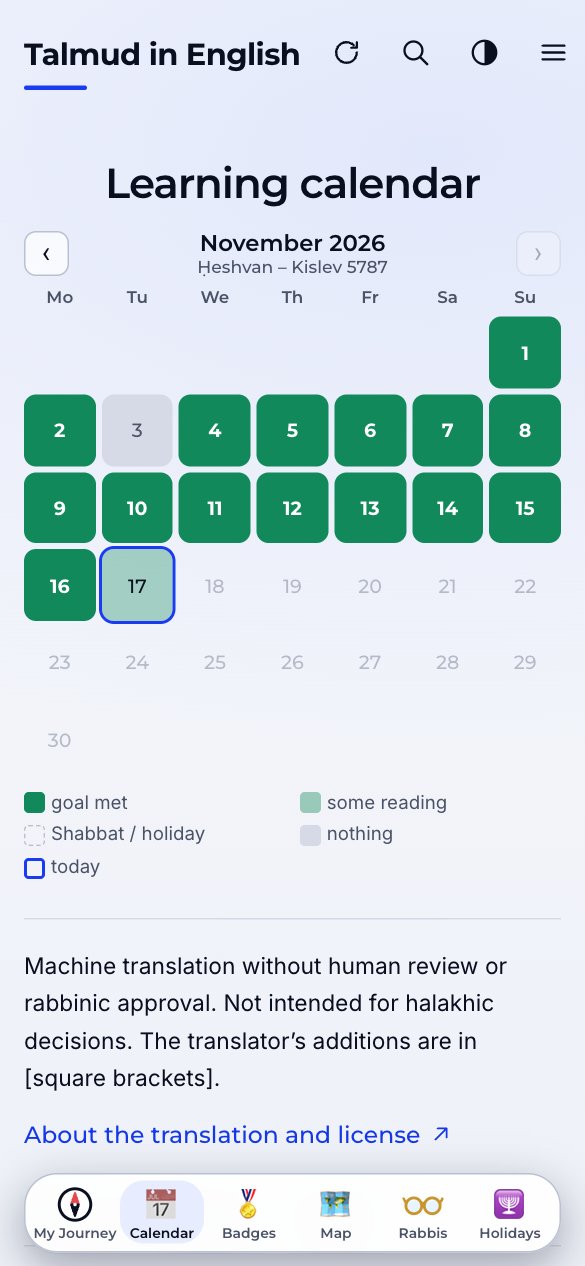
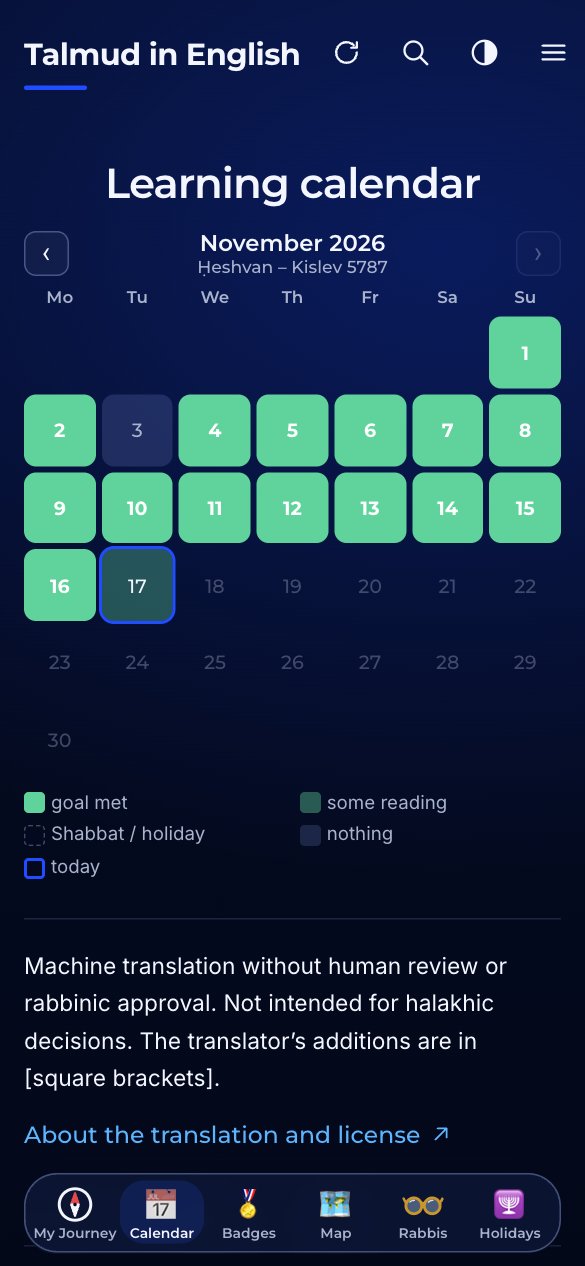
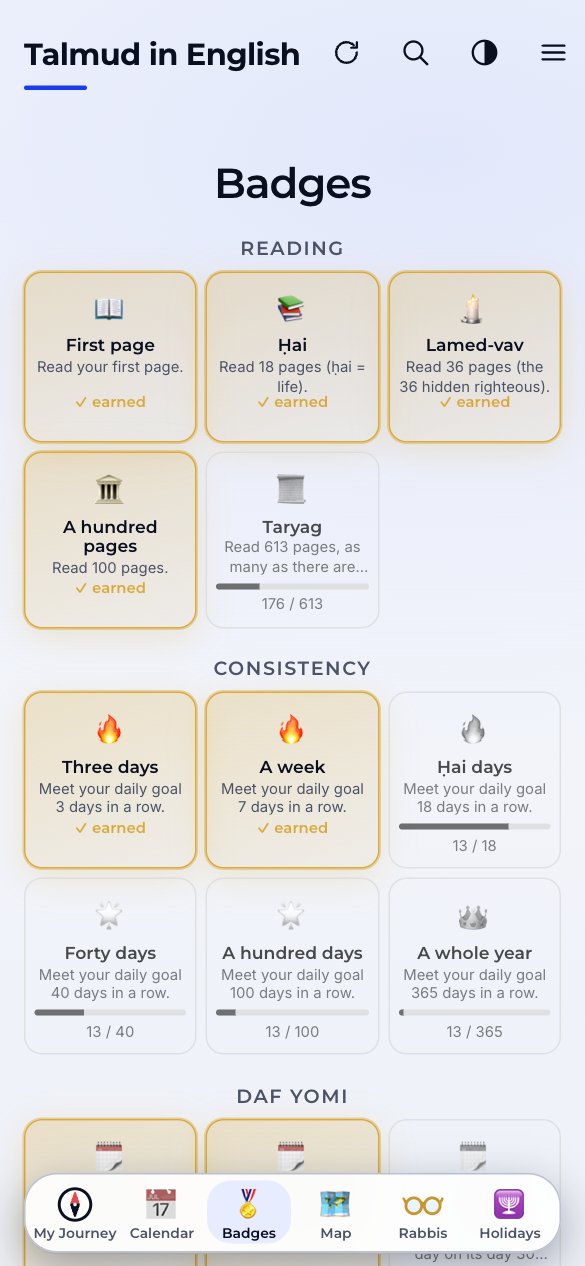
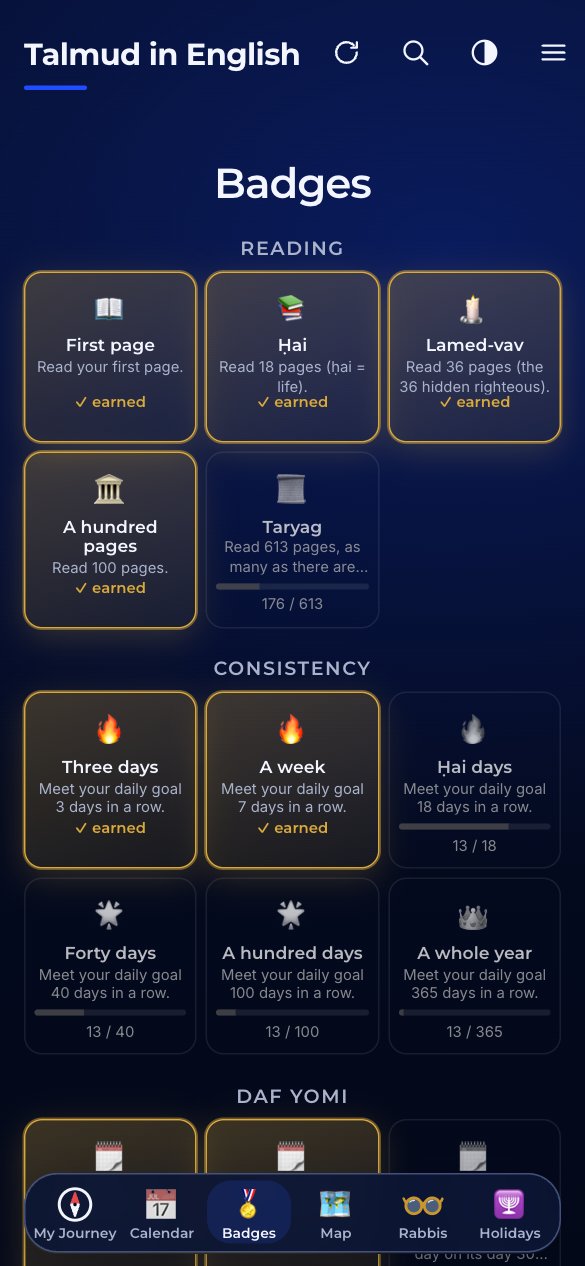
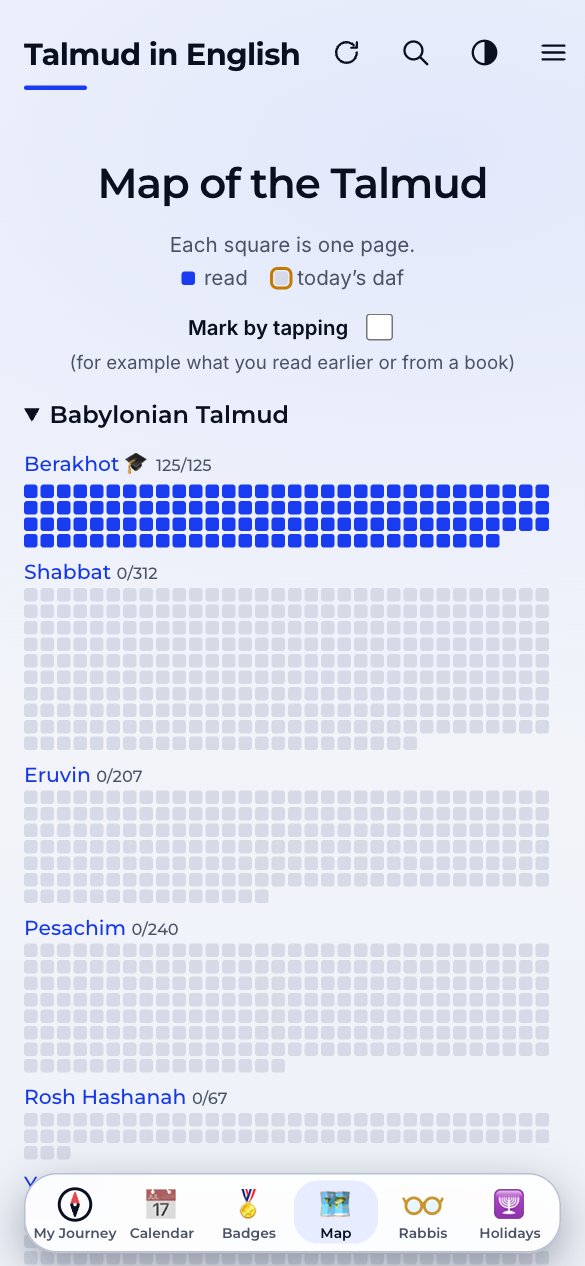
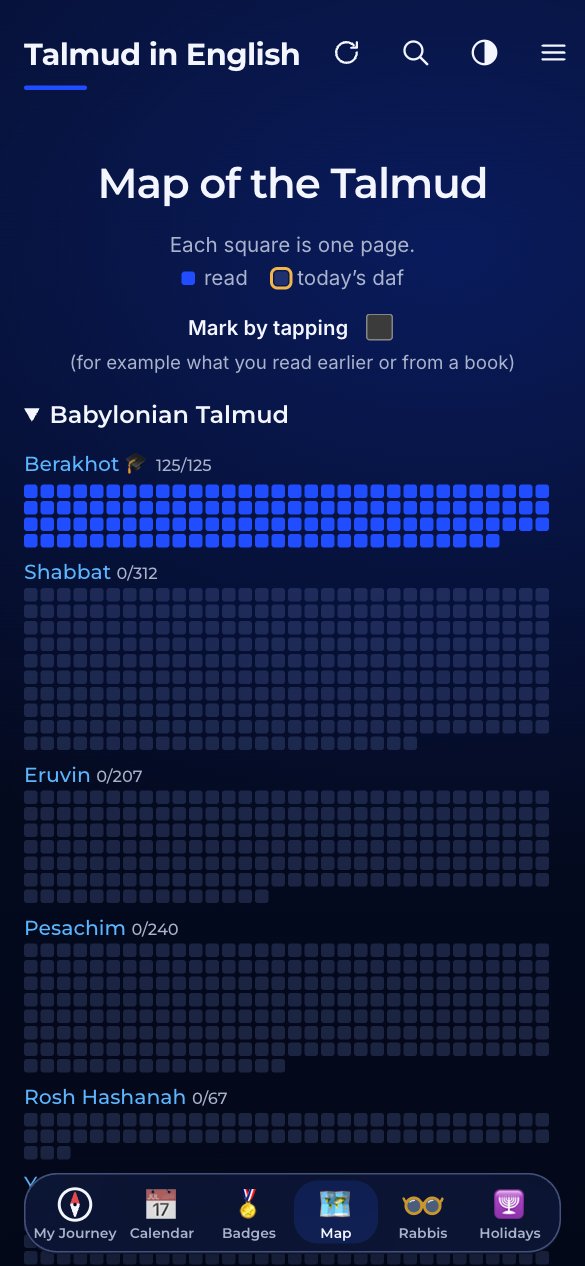
Real screenshots of the mobile app with made-up data: someone who has been reading Daf Yomi for almost a month. In your app you start from zero, and everything grows as you read.
Install the desktop app
The app can also be installed on a computer. It opens in its own window and, on a wide screen, shows the whole map of the Talmud at once.
Chrome or Edge (Mac and Windows)
- Open talmud-english.com.
- Click the install icon on the right of the address bar (a monitor with a downward arrow), or choose Install TALMUD IN ENGLISH in the menu.
- Confirm with Install. The app appears in the Dock, in the Start menu or among your applications.
Safari on a Mac
- Open talmud-english.com in Safari (macOS Sonoma or later).
- Choose File → Add to Dock and confirm with Add.
Progress on your computer and on your phone is kept separately. You can join them with device sync.
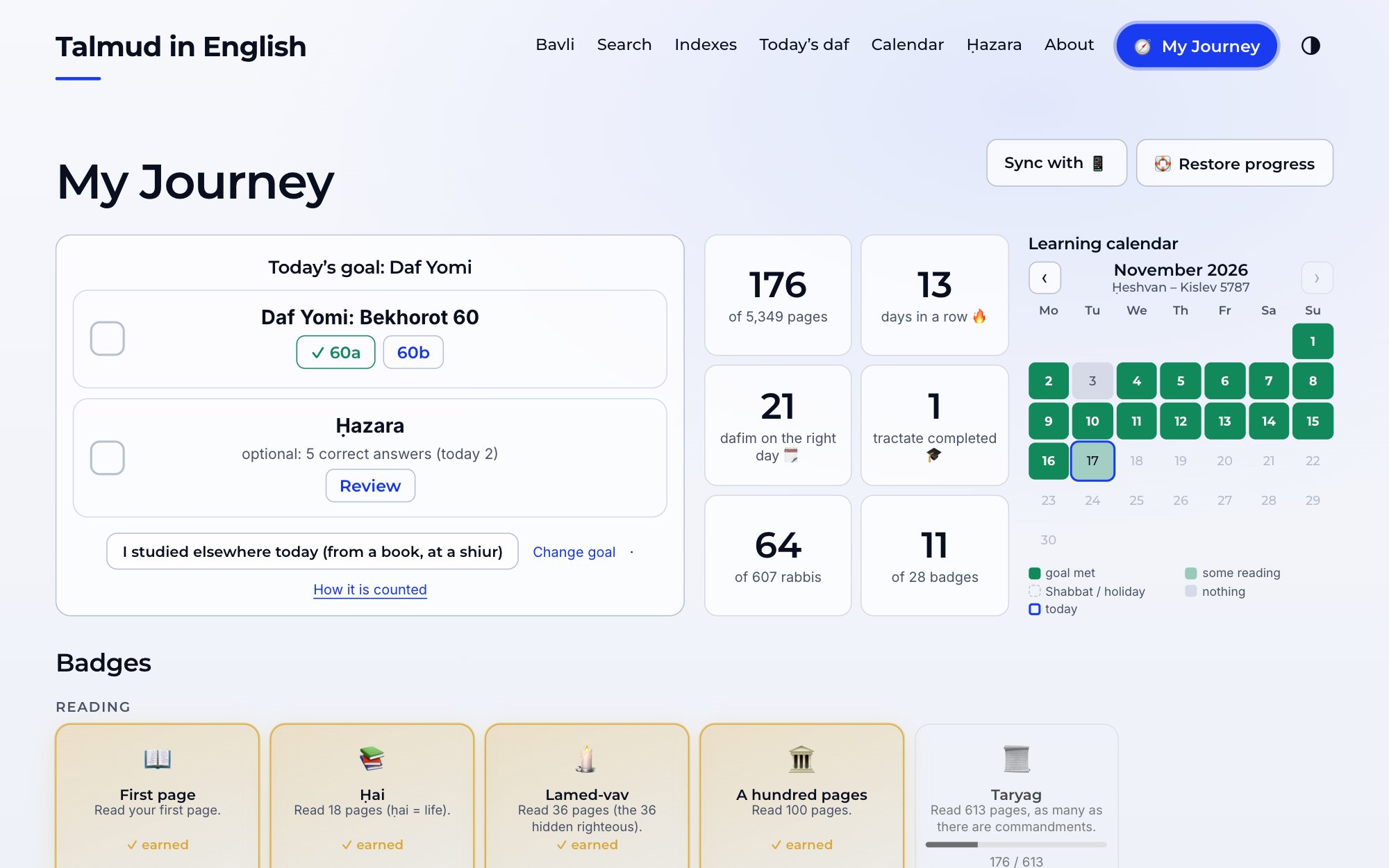
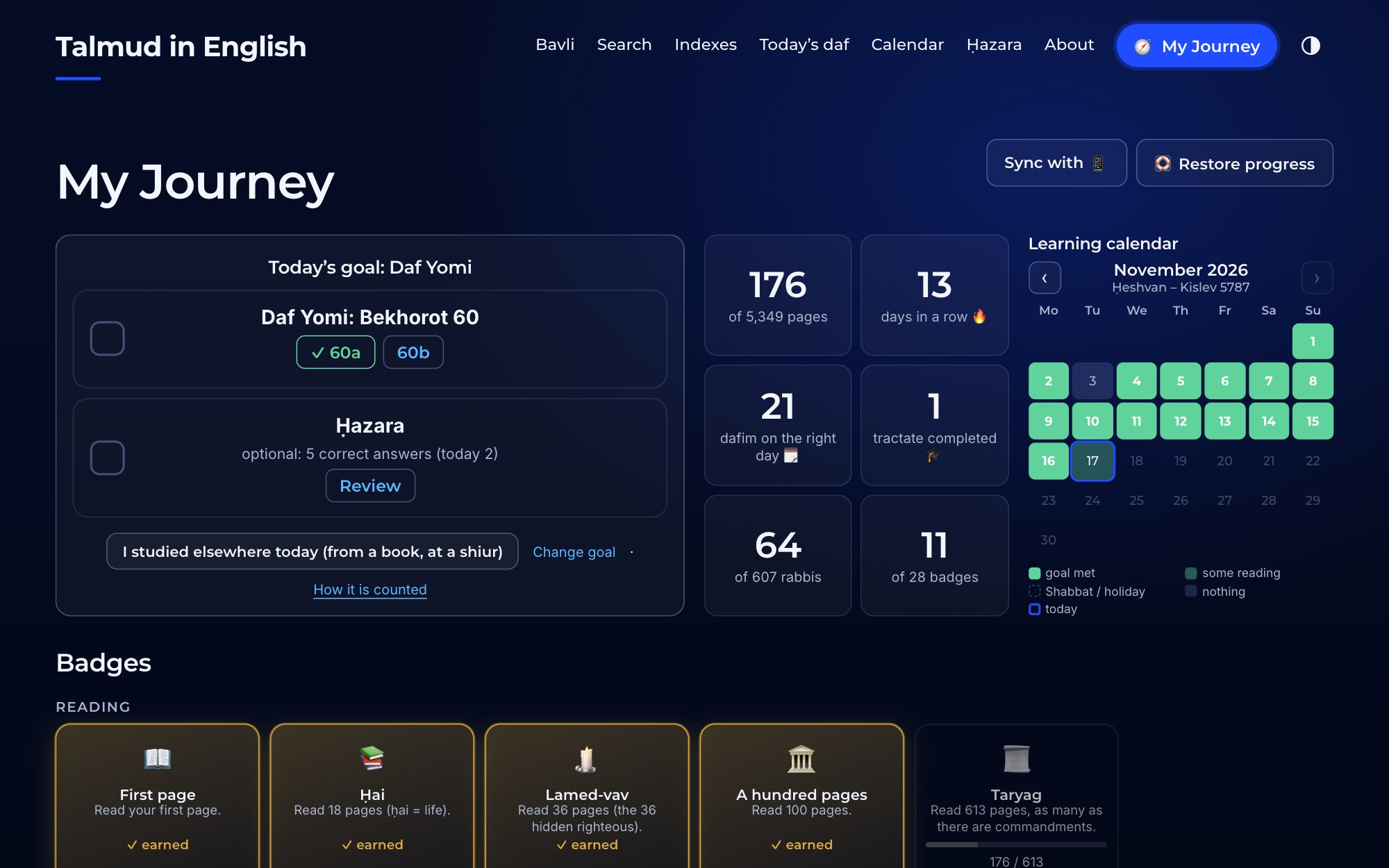
What it looks like in the app
A real screenshot of the app with made-up data.
Device sync
Have the app on both your phone and your computer? Link them, and your progress will merge by itself on all devices. No account, no email, just one code.
- In the app, open App → Device sync and choose Turn on sync. A code and a QR code will appear.
- Write the code down (on paper, for example). It is the only key to your progress.
- On the other device choose I have a code and scan the QR code or type the code in. Done.
How it works: your progress is encrypted on your device with your code and only then saved to the server. The server does not know the code, cannot see the content and does not know whom the backup belongs to. A backup that no one has used for five years is deleted automatically. Do not send the code to anyone; whoever knows it can see your progress.
Loading…
Backup file (no internet)
The backup contains only your progress. Send it to yourself (AirDrop, email, message) and load it on the other device. Progress is merged; nothing is overwritten.
Restore progress
Lost your phone or computer? If you had device sync turned on, all you need is the code you wrote down.
- Install the app on your new device (phone, computer).
- In the app, open App → Device sync → I have a code and enter the code. Your progress comes back and sync continues.
Or download the backup here
Enter the code. Your progress is decrypted right in this browser and downloaded as a backup file, which you then load in the app via Device sync → Backup file → Load backup.
Without the code (or a backup file) your progress cannot be restored. It is stored nowhere else, and that is intentional.
Rules: how progress is countedDaily goal, streak, Shabbat and holidays, badges
- You choose your own daily goal: Daf Yomi (today’s daf, both sides), Amud Yomi (one page a day) or your own pace (a number of pages a day in a chosen tractate). You can change it at any time.
- You mark what you have read. At the end of each page there is a ✓ Done, mark as read button. The app never marks anything by itself; it only reminds you when you reach the end. A mark can be undone.
- A day is complete when you meet your daily goal. Studying from a book or at a shiur? Tap I studied elsewhere today.
- Shabbat and holidays do not break your streak. On Shabbat and on holidays when work is prohibited (Rosh HaShana, Yom Kippur, Sukkot, Shemini Atzeret, Simḥat Torah, Pesaḥ, Shavuot) observant Jews do not use their phones. The streak simply skips these days, as if they were not on the calendar, so those who observe them are not penalized.
- The streak is the number of completed days in a row. Today does not break it until it is over.
- Daf Yomi counts only when you read both sides of today’s daf on its day.
- Retroactively, you can mark pages you read earlier on the map of the Talmud. They count toward pages read and badges, but not toward your streak.
- Badges come in levels with numbers that are meaningful in Judaism: 18 (ḥai, life), 36 (the hidden righteous), 40, 613 (the commandments). For each you can see how much is left.
- You “meet” rabbis by marking as read a page on which they appear.
What you will find in the appThe whole Talmud, today’s daf, calendar, ḥazara…
- The Talmud in English: the Babylonian Talmud (Bavli) and the Jerusalem Talmud (Yerushalmi) side by side with the Hebrew and Aramaic original; both translated in full.
- Today’s daf: the Daf Yomi page for every day. The home page shows today’s, tomorrow’s and the next day’s daf.
- Search across the whole Talmud, in English and in the original.
- Indexes of rabbis (who debated with whom) and of Bible quotations.
- Calendar: the Hebrew date, holidays and fasts with recommended readings from the Talmud.
- Ḥazara: review through questions on the texts of the Talmud.
- Your progress: a map of the pages you have read, your streak, badges, a siyum for each completed tractate and a collection of the rabbis you have “met”.
- Offline reading: the app gradually saves the whole Talmud (about 300 MB) on your device, so you can read it without an internet connection too. It downloads in the background while the app is open; My Journey shows the progress.
How to use the appGuide, reading, marking as read, badges
- Guide and plain text. The switch in the header turns on the Guide: the structure of the debate marked in color (Mishna, question, objection, story…), explanations of terms and names, today’s daf and the calendar. Turn it off to keep only the plain text.
- Reading. At the top of the page choose Parallel, English only or Original. Underlined terms and names of rabbis open a short explanation.
- Marking as read. Mark a page with the ✓ Done, mark as read button below the text. The app reminds you when you reach the end, but never marks a page by itself.
- Picking up where you left off. On the home page, the Your progress card has a Continue button that takes you back to where you stopped.
- Daily rhythm. One daf a day (Daf Yomi) is enough, or your own pace. Your streak grows when you read every day.
- Translation errors. The translation is machine-made. Report an error with the pencil ✎ next to the paragraph.
- Sharing. The arrow next to a paragraph creates an image with the quotation for sharing.
- Light and dark mode can be switched with the icon next to the Guide switch.
Frequently asked questionsBackups, updates, privacy
- Will my progress be deleted?
- In the installed app, the device will not delete it by itself. It is deleted if you uninstall the app, clear the browser data or lose the device. With sync turned on, you can restore it with your code.
- What if I lose the code?
- As long as you have at least one linked device, you can find the code there (Device sync → Show code). If you lose both the code and all your devices, your progress cannot be restored. No one else has it.
- How does the app update?
- By itself. The next time you open it with a connection, the new version is loaded. Your progress stays.
- How do I uninstall the app?
- Like any other app: press and hold the icon and choose Remove (on a computer, use the app’s settings). This deletes your progress on the device.
- Does anyone know that I use the app?
- We do not: we have no accounts, names, emails or tracking cookies, and sync backups are encrypted. We measure website traffic anonymously and without cookies: only daily totals are stored (how many views a page had, which website people came from, phone or computer, country) and a grid of the places on a page where people click, never anything that would identify you. If you have “Do Not Track” turned on in your browser, you are not counted at all. Your internet provider can, however, see that you visit talmud-english.com (not what you read), as with any website.